
Overview
This guide walks you through configuring Okta as your Single Sign-On (SSO) provider for CrewAI Factory installations.Installing for the first time? The Deployment Guides provide complete end-to-end walkthroughs with infrastructure setup, full
values.yaml examples, and post-install steps. Use the closest guide as a base and replace the auth section with this page’s Helm values.Initial Setup
Open your Okta admin panel. Use the left sidebar to navigate to “Applications” > “Applications”. Then click “Create App Integration”.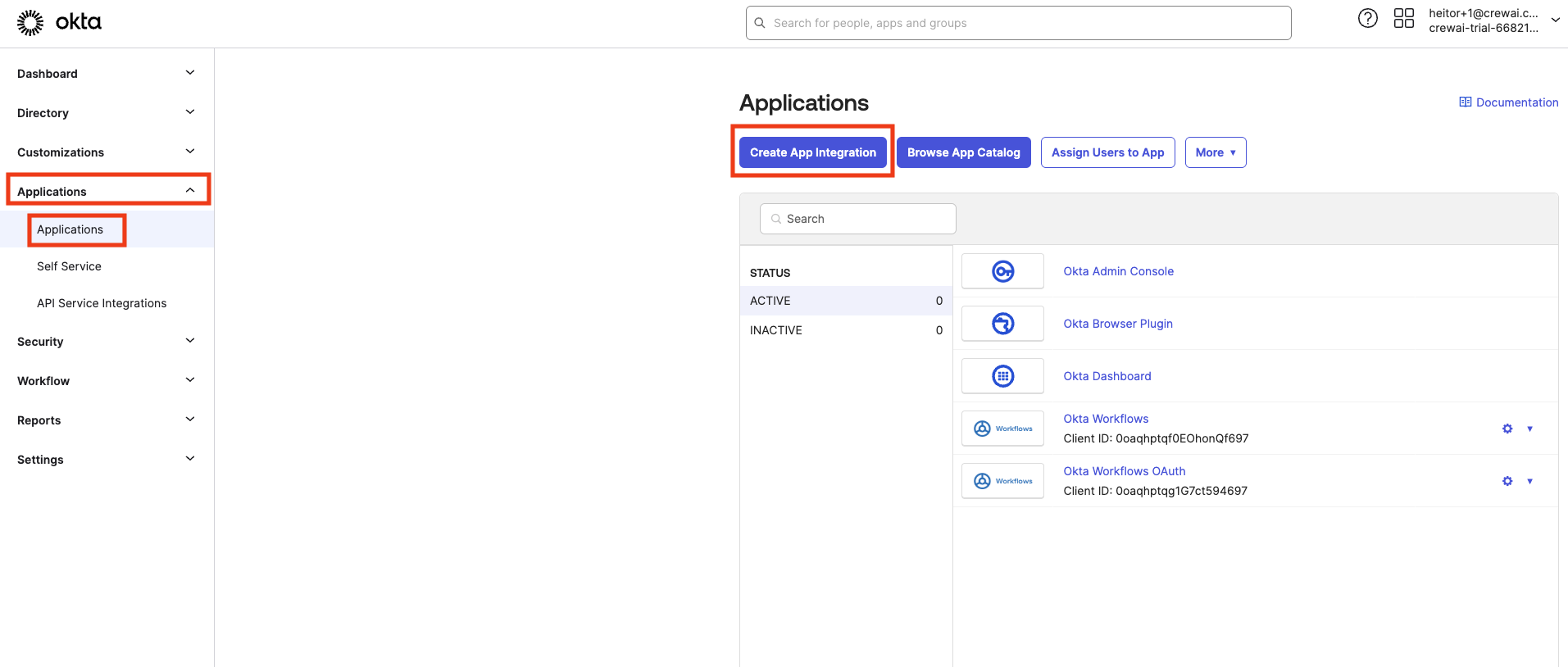
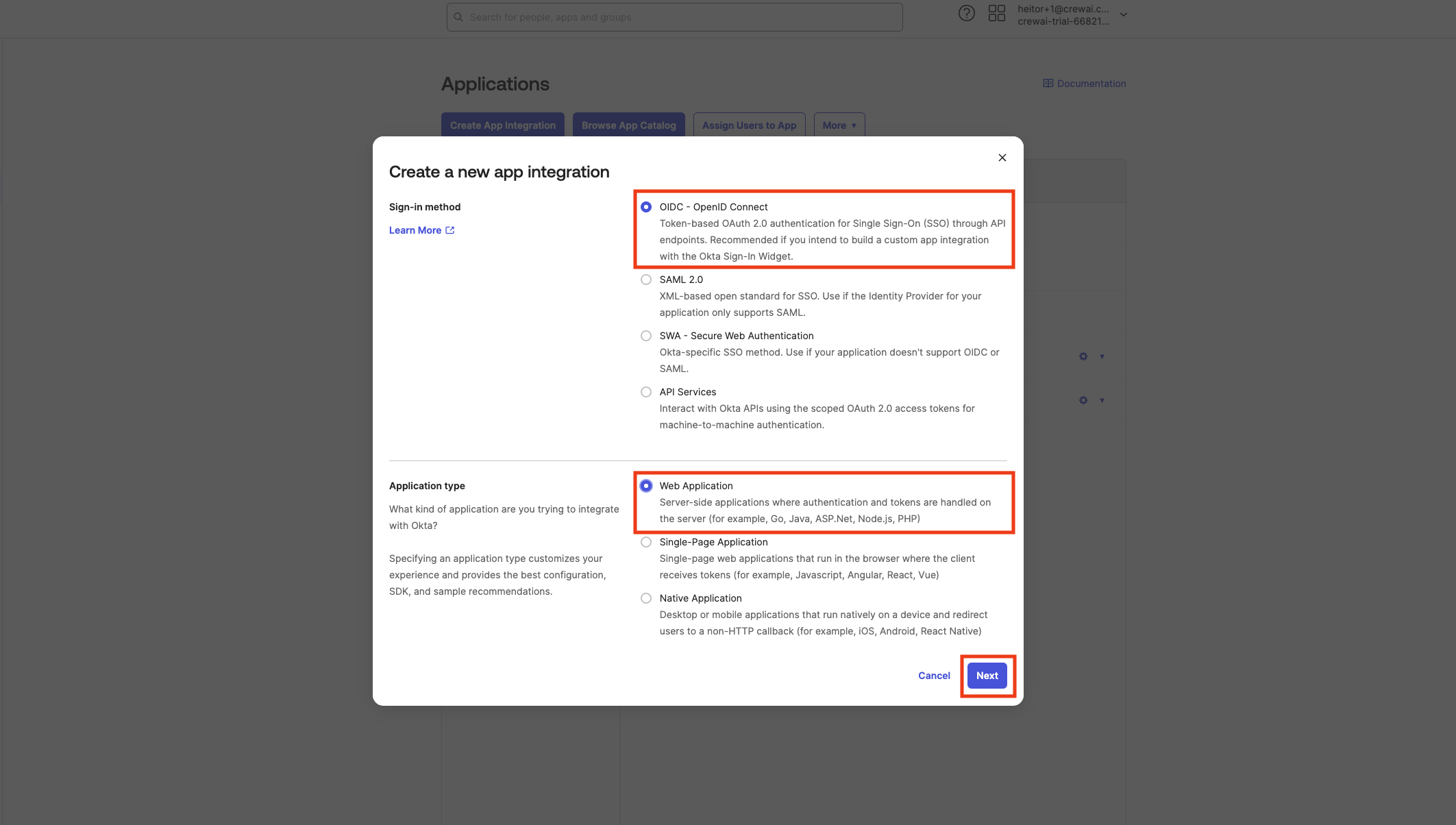
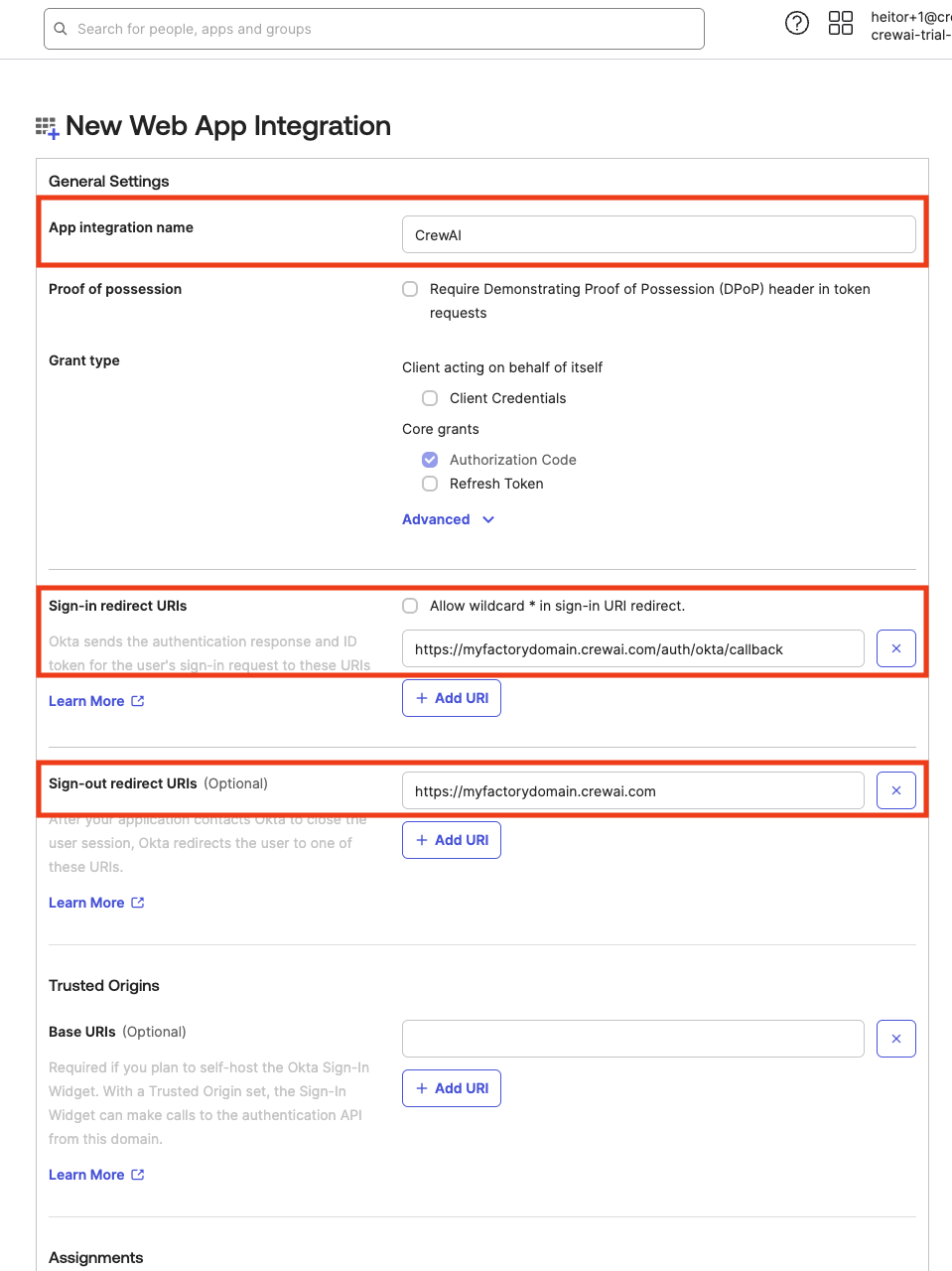
/auth/okta/callback at the end (e.g. https://myfactoryurl.crewai.com/auth/okta/callback)
For the sign-out URI, just add the plain URI of your CrewAI Factory installation (e.g. https://myfactoryurl.crewai.com/auth/okta/callback)
Collecting Credentials
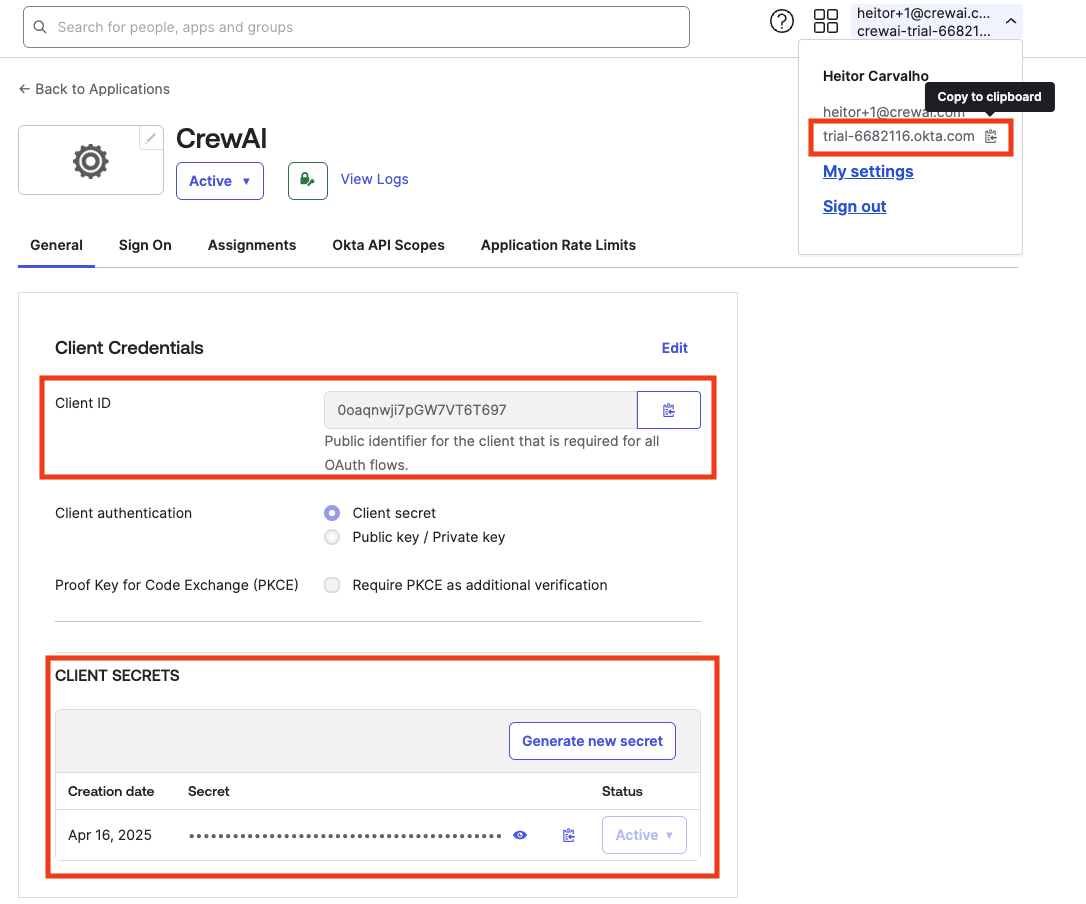
Now with the app created, we can collect the necessary credentials for the CrewAI Factory application environment variables.- Under “Client Credentials”, copy the Client ID. This value should be assigned to the
OKTA_CLIENT_ID. - Under “Client Secrets” copy the existing secret or generate a new one. The secret should be assigned to the
OKTA_CLIENT_SECRETenvironment variable. - On the top right corner under your Okta username, you can obtain your unique okta URL. Copy it and assign to the
OKTA_SITEenvironment variable.
Managing Access
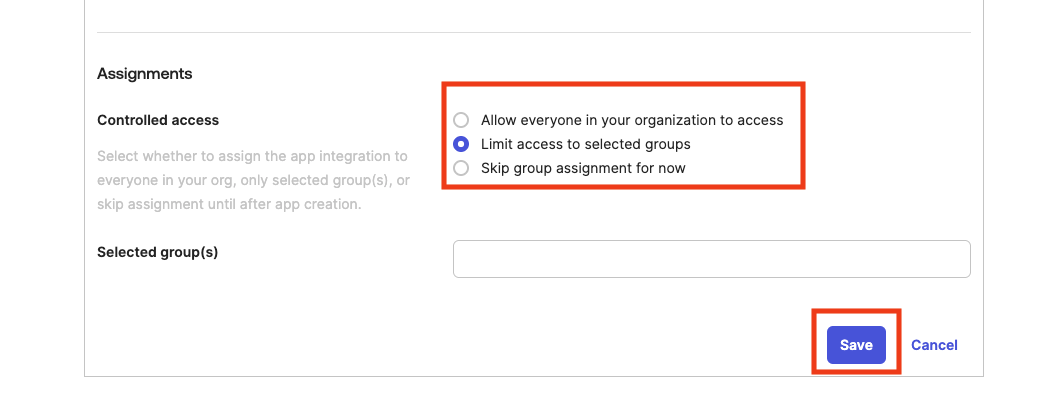
Now, under “Assignments” tab, we can manage who has access to this application (if you haven’t enabled “Everyone” when creating the app). If you enabled access only to specific people or groups and didn’t assign them at app creation time, it is a good moment to do so. Just click “Assign”, choose if “People” or “Groups” and follow the prompts on screen.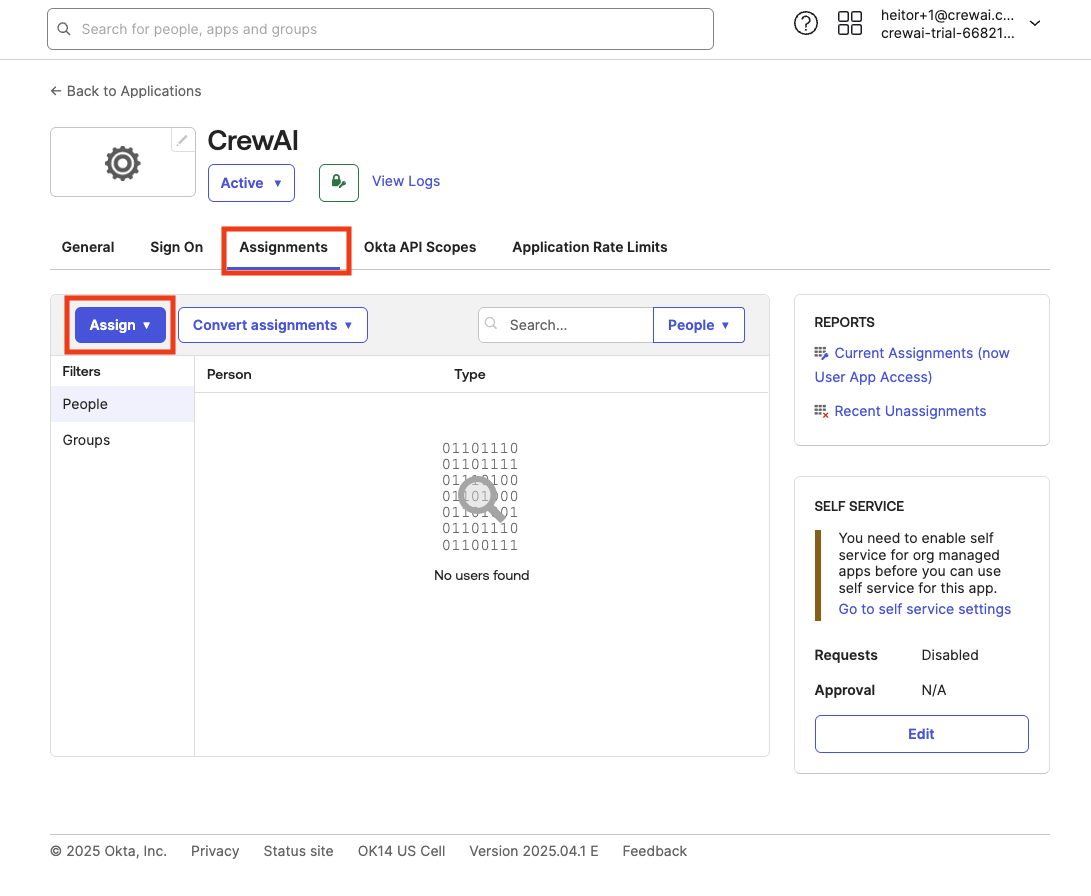
Configure Authorization Server
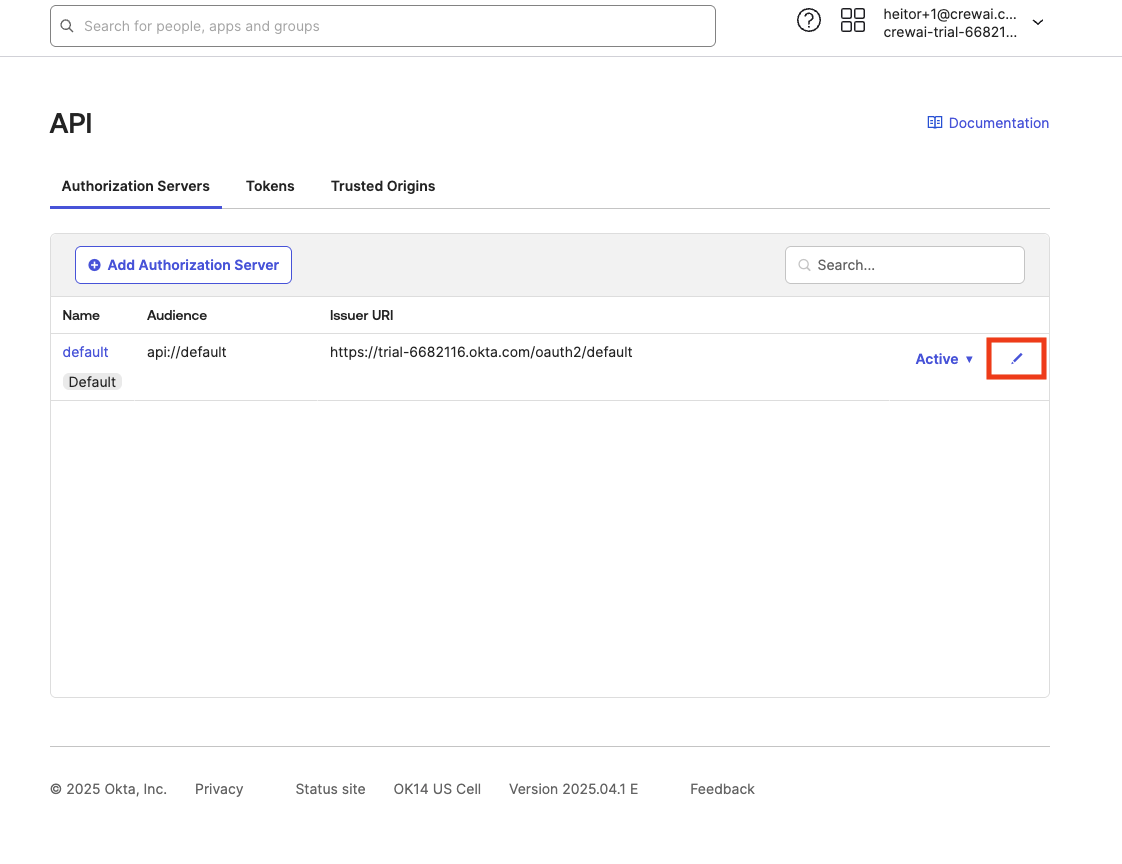
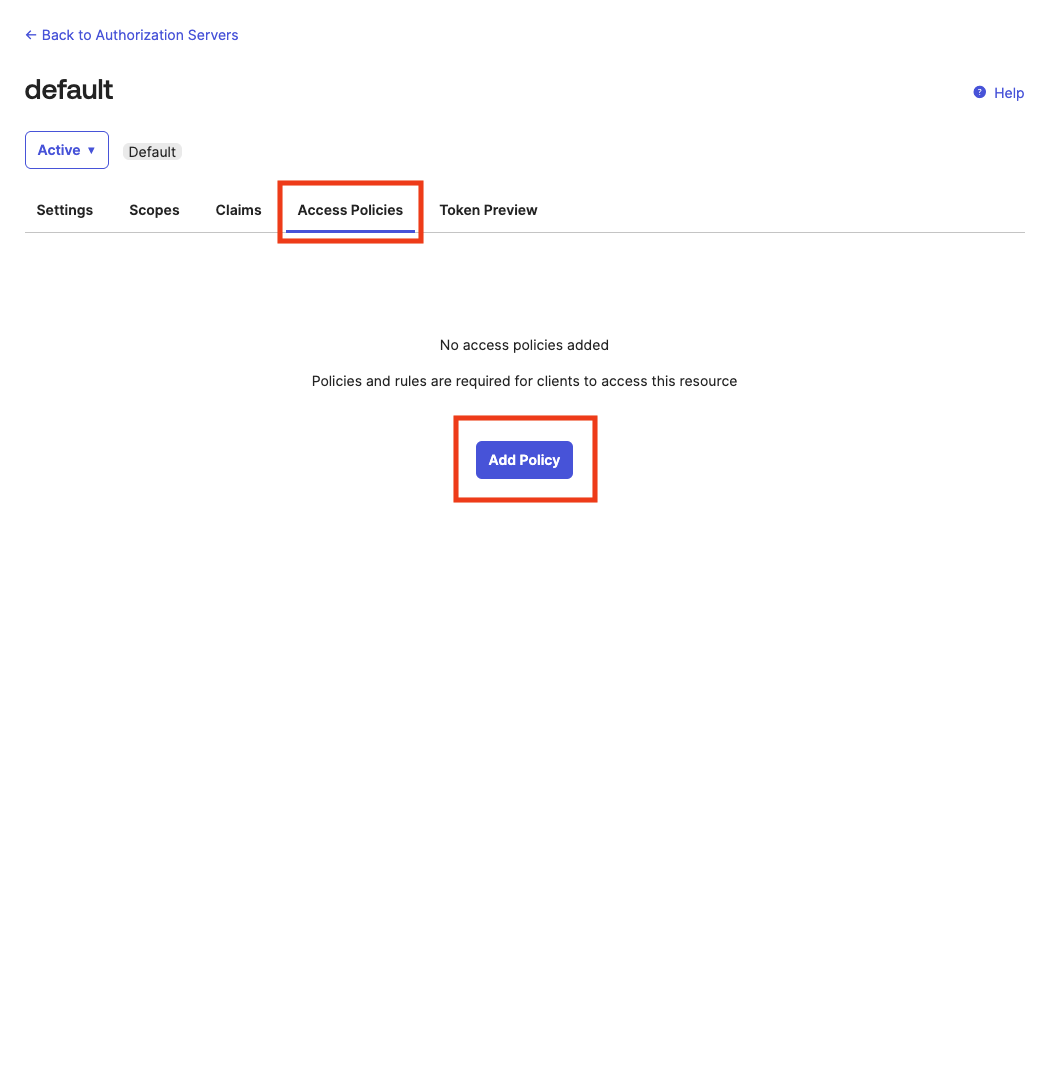
And lastly, we have to configure our authorization server with a policy that allows using our newly created app to login into CrewAI Factory. On the left sidebar, find “Security”, and then “API”.
OKTA_AUTHORIZATION_SERVER environment variable. Use the same value value as Audience of the OKTA_AUDIENCE environment variable
Click on “Edit” icon in the server that you will use as your authorization server.
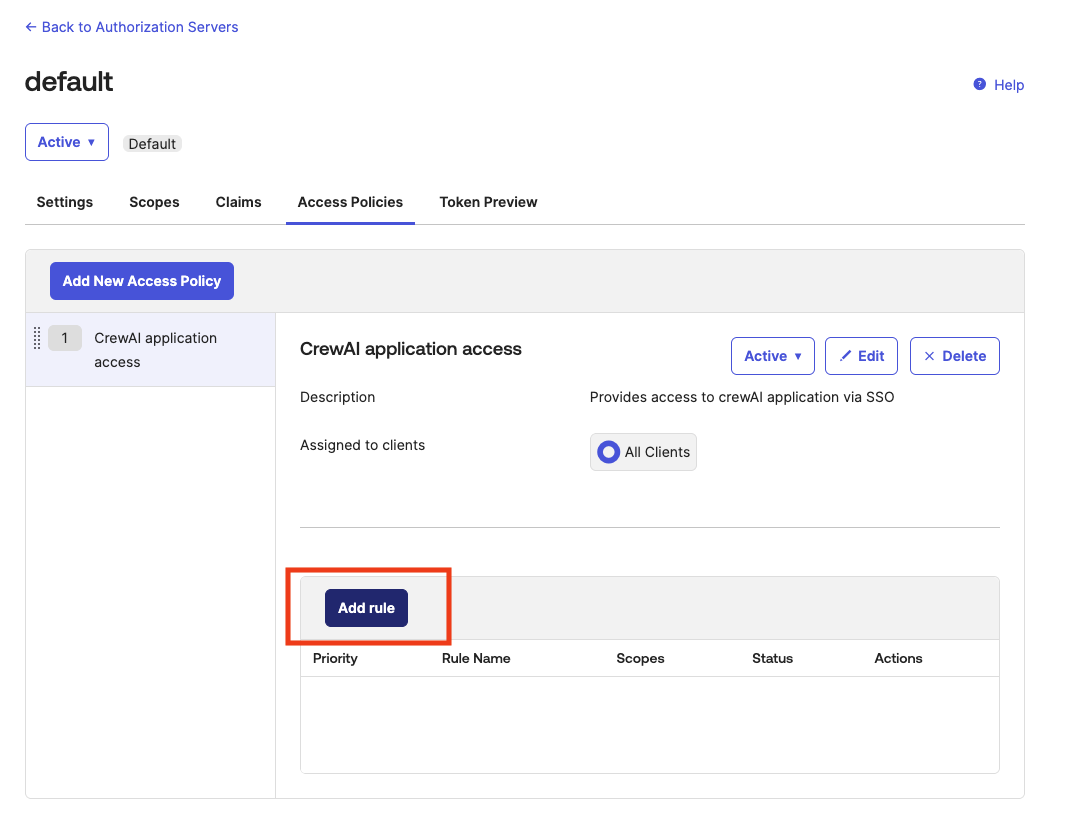
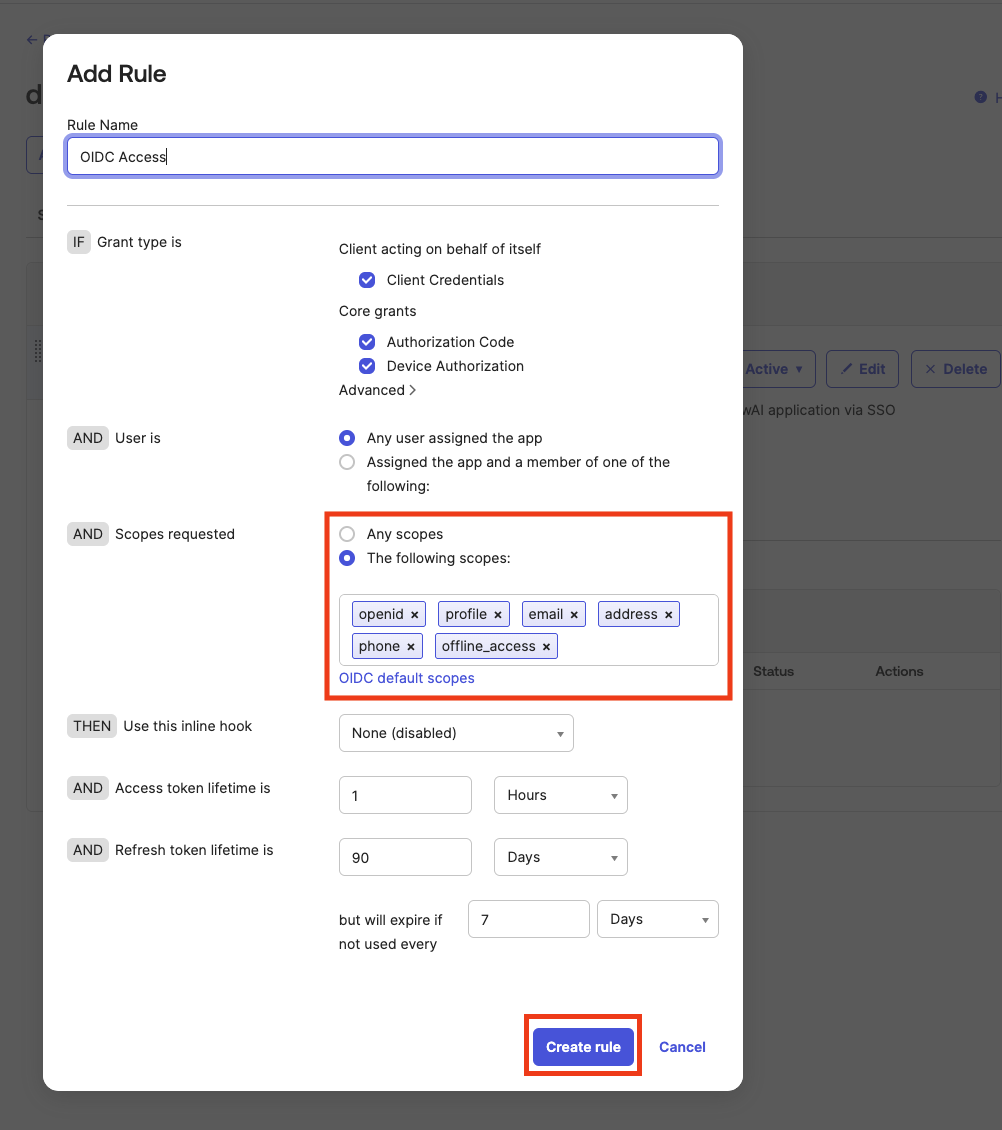
Helm Values Configuration
oauth.enabled is NOT required for Okta SSO. Enabling it unnecessarily adds a database pre-creation requirement and deploys an additional microservice. oauth.enabled controls the Built-In Integrations service (Gmail, HubSpot, etc.) — it is separate from SSO authentication.Combining With Other Features
- Wharf (trace collection): No additional values needed — Wharf is enabled by default. Ensure the
wharfdatabase is pre-created. See Wharf reference. - Studio V2: Configured entirely post-install via the web UI and
kubectl execcommands. See Enable Studio V2. - Built-in Integrations: Requires
oauth.enabled: trueand separate OAuth credentials. See Built-In Integrations. - ArgoCD / GitOps: Auto-generated secrets must be set explicitly. See the ArgoCD guide.
Configure the CLI to use Okta as your OAuth2 provider
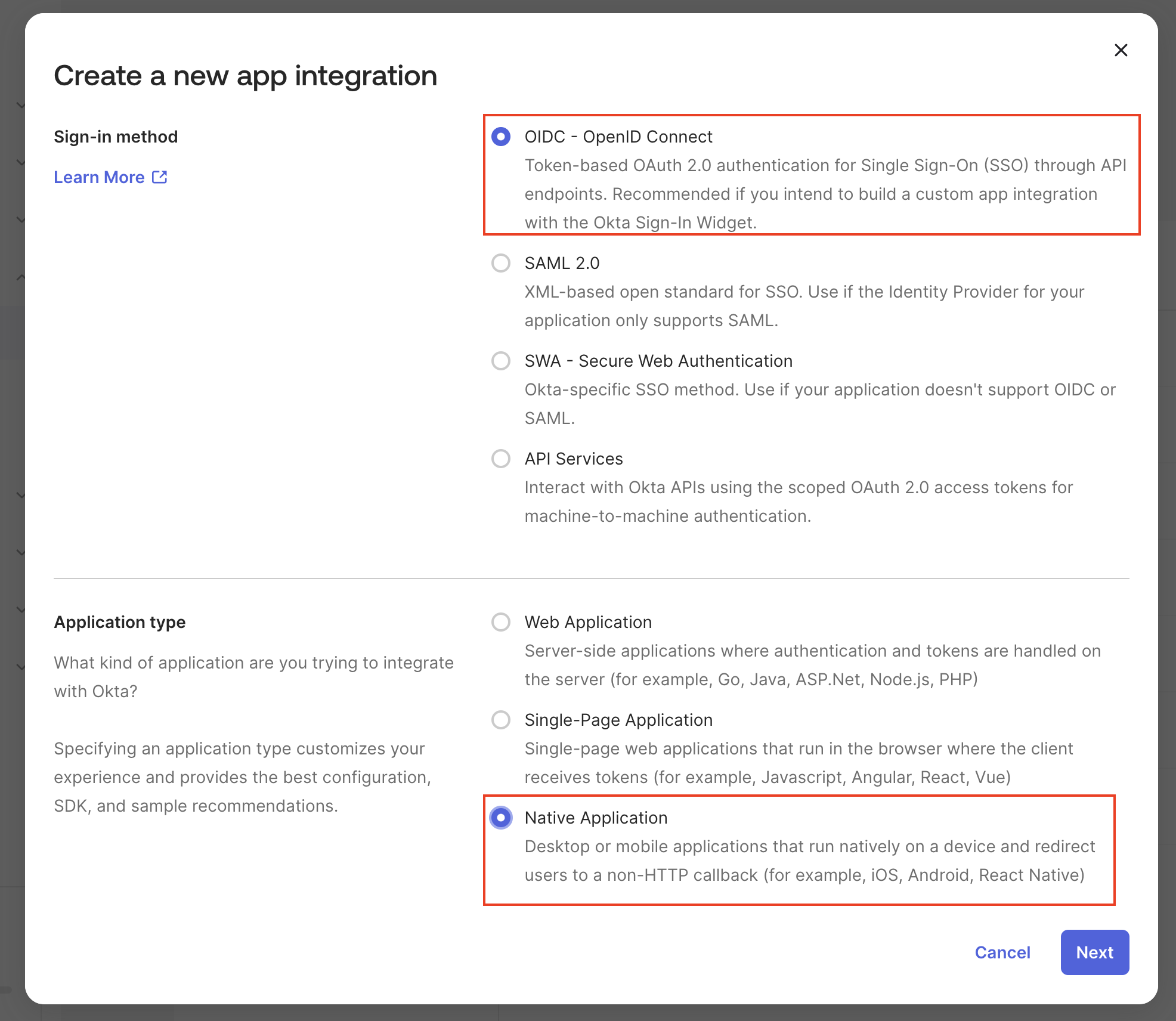
First of all, let’s make sure you have a dedicated application to perform the Device Authorization Grant Flow. To do that, open your Admin Okta console and click in Create App Integration Select OIDC - OpenID Connect as the Sign-in method, and then Native Application as the Application type.Device Authorization is only supported for use with a native application.
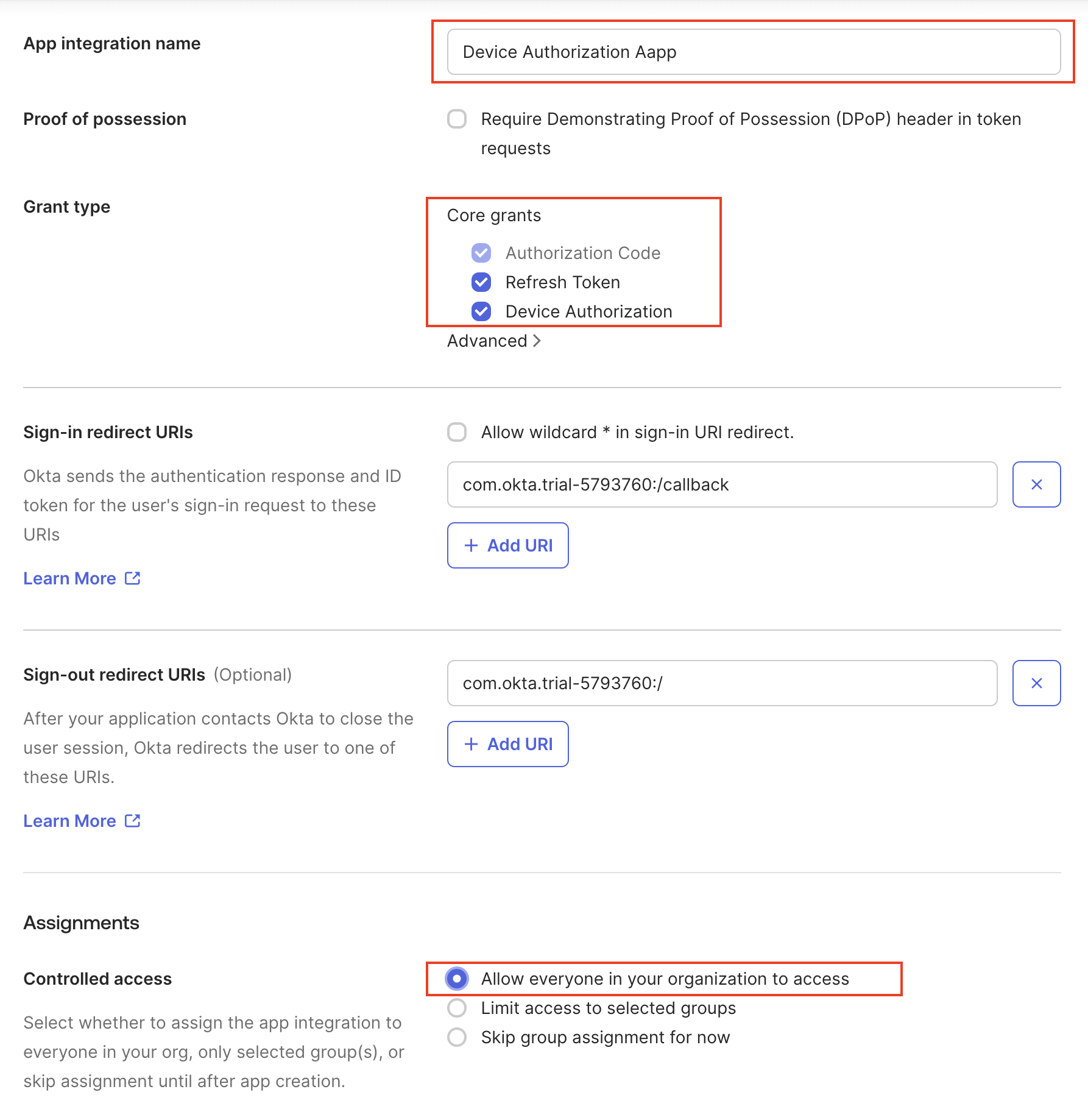
OKTA_DEVICE_AUTHORIZATION_CLIENT_ID environment variable to match the client_id generated for your app.
crewai CLI is version 0.159.0 or higher. To configure the Okta provider just run the following command: